



3D CAD
Generative AI
Manufacturing DX
August 12, 2026
CAD AI Feature Comparison: Design Assistance AI and Automated Design in SOLIDWORKS, iCAD, Inventor, CATIA and NX
 Updated on 2026/08/12
Index
The claim that “AI is changing design” gets refreshed every year. What design teams actually want to know, though, is not an abstract vision of the future but “what exactly can I do with the CAD system I already use?“
This article organises the AI features of five products widely used in mechanical design — SOLIDWORKS, iCAD SX, Autodesk Inventor, CATIA and Siemens NX — limited to what can be confirmed in each vendor’s official announcements. We do not rank them; we set out what each can do and what it presupposes. The information reflects what was public as of August 2026, so please check each vendor’s latest release notes when you evaluate them.
Key points of this article
- Even when the label is the same “AI-powered”, what the AI touches falls into three layers. Predicting commands, searching knowledge, and generating or editing the model are entirely different things in practice
- Availability varies. Some features are fully released, others are beta or technology previews, and some carry over from a previous version
- It is not always self-contained on the desktop. Some features assume a connection to a platform
- The AI features inside CAD are only one of the entry points to design automation. There are three routes to automating without changing CAD
What exactly do CAD “AI features” refer to?
Lining up the vendors’ announcements, what is called an “AI feature” divides into three broad layers. Comparing products without this classification leads to conversations at cross purposes.
| Layer | What the AI touches | What it does | Representative feature names |
|---|---|---|---|
| Layer 1 | Operation history and UI | Predicts and suggests the next command | Command Predictor, Selection Prediction |
| Layer 2 | Documents and knowledge | Answers questions in natural language and points to procedures and materials | Design Copilot, virtual companions |
| Layer 3 | The model itself | Generates and edits geometry, assemblies and drawings | Generative Experiences, automatic drawing creation |
Layer 1: predicting and suggesting operations
These display the commands you are most likely to use next, based on past operation logs and the current context. Day-to-day operation gets faster, but the design decisions themselves do not change.
Layer 2: searching knowledge and answering
Ask “how do I use this function?” in natural language and these guide you to the procedure or the official documentation. They help with training costs, but the model does not move. A person still reads and operates.
Layer 3: generating and editing the model itself
Generating geometry, building assembly structures, producing drawings. This is the layer that reduces workload directly, and it comes with the question of who guarantees the validity of the output, and how. We have also covered how automation is progressing in How Will Generative AI Change Design Work? The Mechanical Design AI Timeline.
What AI features does SOLIDWORKS have?
Dassault Systèmes announced SOLIDWORKS 2026 on 18 November 2025 (local time; the Japanese announcement came on 25 November). The English official announcement lists, on the AI side, “generative AI that accelerates drawing creation and detailing and streamlines assembly creation by automatically recognising and assembling parts that look like fasteners”, and an “AI-powered virtual companion”.
Two features can be confirmed by name and content in the official blog post What’s New in SOLIDWORKS 2026 – Design (22 October 2025).
- Automatic Drawing Creation (beta): creates a drawing sheet with views and proposed dimensions placed, at the press of a button (Layer 3)
- Automatic Fastener Recognition and Assembly: recognises parts that look like nuts, bolts and washers as fasteners and assembles them accordingly (Layer 3)
What is worth noting here is which version a feature actually belongs to. Automatic fastener recognition did not first appear in 2026. The official SOLIDWORKS help has a page for SmartMates with AI Fastener Recognition (2025 SP3), so a feature introduced in a 2025 service pack has been carried over into 2026. It corresponds to “SmartMates” in the UI.
The Command Predictor, which predicts and suggests the next command, has its own page on the official SOLIDWORKS site. However, it does not appear in the “What’s New in SOLIDWORKS 2026 – Design” post above, and we could not confirm any official statement positioning it as a new feature of 2026.
SOLIDWORKS 2026x FD01 in March 2026 added further AI features, but the following three are explicitly stated as beta on the official blog.
- AI-assisted drawing generation with a prompt guide
- AI-assisted error analysis on the CAD model
- AI-powered assembly structure generation
What AI features does iCAD SX have?
Looking at the official site of iCAD Ltd. and the product line-up on its technical portal, the word “AI” is not used to promote the product. What is front and centre is an “ultra-light data structure at about 1/50” and “ultra-fast response of 0.2 seconds for three million parts”.
On the other hand, features that lead to design automation are provided. The product material explains that you can “create drawings instantly from the 3D model, and update the drawing to the latest 3D state instantly when the design changes”, and that manufacturing information such as surface roughness and tolerances is “accumulated directly on the assembly”. Rather than transcribing manufacturing information into the drawing, the idea is to hold it on the 3D model side.
An interface to the outside is also officially provided. The product line-up includes, as an option, a “software development kit (a development kit for company-specific customisation programs)” — a development kit for building your own add-ins — which opens a route for external tools to handle iCAD data. Our own automated design verification service, Hacadly, supporting iCAD SX as standard is one example. The product family also includes configuration management (SOLVEUS), data utilisation (ViDice), production preparation (Fujitsu Digital Production Preparation VPS), VR verification (DIPRO Xphere) and structural analysis (COLMINA CAE), and it also connects to MISUMI’s “meviy”.
In other words, the CAD system not promoting AI and that environment being unable to use AI-based processing are two different things. The pattern here is that missing capabilities are added from the outside, through add-ins and integration with external services.
What AI features does Autodesk Inventor have?
In Inventor 2027, the AI agent “Autodesk Assistant” ships as a technology preview (announced in Japan on 21 April 2026). Through a natural language interface it can reportedly “intuitively analyse models, create model states, suppress components and generate parameters”. According to Autodesk’s developer blog, the Assistant responds based on the actual geometry, structure and properties, through a mechanism (Model Context Protocol) that lets the AI read the contents of the model being edited in a structured way. That is the difference from a general-purpose AI relying on text alone.
Alongside it — although this is not AI — iLogic code blocks were added as a fully released feature. They allow you to “build automation logic without writing scripts”, and while the AI agent is still at preview stage, you could argue that this is the one that pays off in practice.
What AI features does CATIA have?
What characterises CATIA is that AI is structured as agents on a platform. On 28 July 2026, Dassault Systèmes announced that it had rolled out Industrial AI with CATIA R2026x FD03. It is delivered on the 3DEXPERIENCE platform (SaaS).
Three AI agents are defined as Virtual Companions.
| Name | Role |
|---|---|
| AURA | Business expert. Puts the company’s knowledge and know-how to work |
| LEO | Engineer. Covers mechanical engineering, knowledge-based engineering, systems engineering and requirements engineering |
| MARIE | Scientist. Provides scientific knowledge |
Of these, LEO is described as a virtual teammate that “interfaces directly with CATIA and SIMULIA tools and builds models“. That places it not in Layer 2 (knowledge search) but in Layer 3 (generating and editing the model). Delivered at the same time, Generative Experiences converts text, documents, drawings and scan data to “generate executable outputs such as design updates and completed tasks”.
Worth noting is that LEO is explicitly described as being built on physics-based controls, with its outputs checked against physics-based validation. The thinking is to pair generation with a mechanism that confirms “can this actually be made?” afterwards.
What AI features does Siemens NX have?
On 1 July 2025, Siemens announced that it had introduced an AI copilot into NX. Design Copilot NX is described as “a natural language interface to accelerate user learning”, able to search for answers, best practices and documentation in response to technical questions.
According to Siemens’ official blog post on the Copilot, what it can do is explain the steps of multi-step tasks, highlight where commands sit in the UI, provide links to reference material, and make predictive suggestions from recent commands. Even in the examples in that post, the Copilot guides you on “how to proceed” while the user performs the actual modelling operations. In other words, at present it centres on Layer 2 (knowledge search and guidance), which is different in character from CATIA’s LEO interfacing directly with model construction.
Separately, NX has been building up individual features using AI and machine learning for some time.
- Topology Optimization: removes unnecessary material based on structural analysis (built on Convergent Modeling)
- Design Space Explorer: multi-objective parameter optimisation with Simcenter HEEDS. Studies that used to need a dedicated specialist can now be run by designers
- Selection Prediction / Select Similar: identifies geometrically similar parts through shape recognition
- NX Voice Command Assist: calls up commands by voice and navigates multi-level menus
- On the manufacturing side, NX X Manufacturing 2606 (June 2026) added generative-AI options to AI Machining Suggestion
Rather than “a conversational AI bolted on afterwards”, the picture is that a set of individual optimisation features came first, and a natural language entrance was added to them.
What differences emerge when you line up the five products?
Read this as differences in character, not as a scorecard.
| Layer the AI touches | Assumed operating environment | Availability (as of August 2026) | |
|---|---|---|---|
| SOLIDWORKS | Mainly Layer 3 (Command Predictor is Layer 1) | Not stated explicitly on the official blog | Automatic Drawing Creation is beta. Fastener recognition originates in 2025 SP3. The AI features in 2026x FD01 are also beta |
| iCAD SX | No mention of “AI” in official positioning | — | Provides automation features (drawing creation from 3D, manufacturing information held on the 3D model) and an add-in development kit. The pattern is to complement it through external tools |
| Inventor | Layer 2 + Layer 3 | The Assistant reads the model being edited directly | Autodesk Assistant is a technology preview (2027) |
| CATIA | Layer 2 + Layer 3 | On the 3DEXPERIENCE platform (SaaS) | Rolled out with R2026x FD03 |
| NX | Mainly Layer 2, plus individual optimisation features | The Copilot is documentation-based | Design Copilot is generally available |
Three things can be read from this table.
Even when it says “AI-powered”, the layer being touched differs
Counting command prediction and model generation as the same “AI feature” makes comparison meaningless. Is it drawing creation, onboarding new engineers, or design exploration? Deciding first which layer the workload you want to cut sits in changes how you read the brochures.
It is not always self-contained on the desktop
CATIA’s Industrial AI is delivered on the 3DEXPERIENCE platform (SaaS). That means in environments where data cannot leave the company, some features simply cannot be used. Checking where a feature is processed, before you look at the feature list, saves backtracking later.
Beta and preview features are mixed in with features carried over from previous versions
SOLIDWORKS’ Automatic Drawing Creation and the AI features in 2026x FD01 are beta, and Inventor’s Autodesk Assistant is a technology preview. Conversely, automatic fastener recognition originates in 2025 SP3 and is not a new feature of 2026. “It is in the latest version”, “it was added in the latest version” and “you can use it today” are three different statements.
Can you automate with AI without changing CAD?
Yes. And this is the point we most want to convey in this article.
Switching CAD is a major undertaking that drags in data assets, training and compatibility with your business partners; it is not something you decide on the strength of AI features. There are three broad routes to automating without changing CAD.
| Route | What it suits | Information lost / points to watch |
|---|---|---|
| Export via a neutral format (STEP) | Geometry-based judgement and verification. The same mechanism works regardless of CAD | “How it was built” — feature history and design constraints — is lost |
| Embed an add-in in the CAD | Automating the CAD operations themselves, without changing the designer’s workflow | Requires development per CAD system, and ongoing work to keep up with version upgrades |
| Hand the CAD data to an external service | Processing that uses knowledge held outside CAD, such as quotation or design verification | Depends on the granularity of the information you can hand over |
Route 1 (STEP) is supported by all the major 3D CAD systems. STEP AP242 is a standard that merges AP203 and AP214, and it also supports PMI (product manufacturing information) and MBD. However, the granularity of the conversion varies with the CAD system, the version and the export options, so “converting to STEP” does not mean the information is preserved as-is. Put the other way round, processing that looks only at facts fixed in the geometry — interference, distances, material thickness, fabrication limits — can be handled regardless of CAD.
Route 2 (add-ins) means embedding functionality inside the CAD. As with Inventor’s iLogic code blocks or iCAD SX’s development kit, these have been available for a long time, independently of any AI features. The advantage is that designers never leave CAD, but development is needed per CAD system, and keeping up with version upgrades continues.
A real example of Route 3 (external services) is MISUMI’s AI platform for mechanical parts procurement, “meviy”. It accepts data from SOLIDWORKS, iCAD SX and Inventor and returns automatic quotations from 3D data. In March 2026 it also added automatic transfer of dimensional tolerance information set in iCAD SX. It is worth noting that what can be handed over is expanding from geometry to manufacturing information.
Processing where the knowledge needed for the judgement sits outside CAD — quotation, design verification, manufacturability — suits this route. And whether the CAD system itself has AI features is not a precondition for it.
What WOGO provides through these three routes
WOGO provides services that use these three routes to automate design work without switching CAD. The target is not the CAD system itself but the designer’s work: design verification, drafting, design and drawing search.
| What you want to do | WOGO service | Route mainly used | What it does |
|---|---|---|---|
| Check 3D models automatically against your own design rules and manufacturing conditions | Automated Design Verification | Routes 2 + 1 | From fabrication-limit checks on individual sheet metal and machined parts through to interference and assemblability verification on assemblies. Rule sets can be managed per department and per supplier |
| Produce 2D drawings automatically from 3D models (drawing breakdown) | Drafting & Design Automation | Route 2 | Automates the release process through view placement, dimensions, annotations and the title block. Your own drafting standards can be built in as rules |
| Generate 3D models automatically from specifications and design conditions | Drafting & Design Automation (3D parametric automated design) | Route 2 | Your design rules and know-how are built in beforehand, and design data is output to match the given inputs |
| Turn assets that exist only as 2D drawings into 3D models | Automatic 2D-to-3D generation (S-Trandim) | Route 3 | Analyses 2D drawings of an assembly from multiple directions and generates the outer geometry as a 3D model. Manual editing after generation is also supported |
| Cut the time spent looking for past drawings and design documents | Design Knowledge AI | Route 3 | AI similar-drawing search across 2D drawings and 3D CAD, plus a design AI platform that spans design standards and technical documents. On-premises supported |
| Automate something specific to your company that none of the above covers | Collaborative Technology Development | Case by case | Joint development of bespoke systems combining 3D data analysis, 3D data editing, 3D scanning and AI data platforms |
Across all of these, iCAD SX and SOLIDWORKS are supported as standard, and other CAD systems and bespoke environments can be supported as well. Designers work in their usual CAD environment, and on-premises operation is supported so that sensitive design data never leaves the company.
Put the other way round, even if the CAD you use today has no AI features, you can choose where to start automating — design verification, drafting, design or drawing search. We are happy to talk even at the stage where you have not yet decided where to begin.
Can AI judge our own in-house design standards?
This is the gap that emerges once you line up the vendors’ AI features. Every feature covered in this article is general-purpose design assistance. A judgement of “can this shape be made on our supplier’s equipment?” could not be confirmed, at least within publicly available information.
What that judgement needs is not general knowledge but the rules your company has built up. How much distance to keep between a bend line and a hole. Where that distance is measured from. These change with the fabricator’s equipment, tooling and material, and they are settled only between you and your supplier.
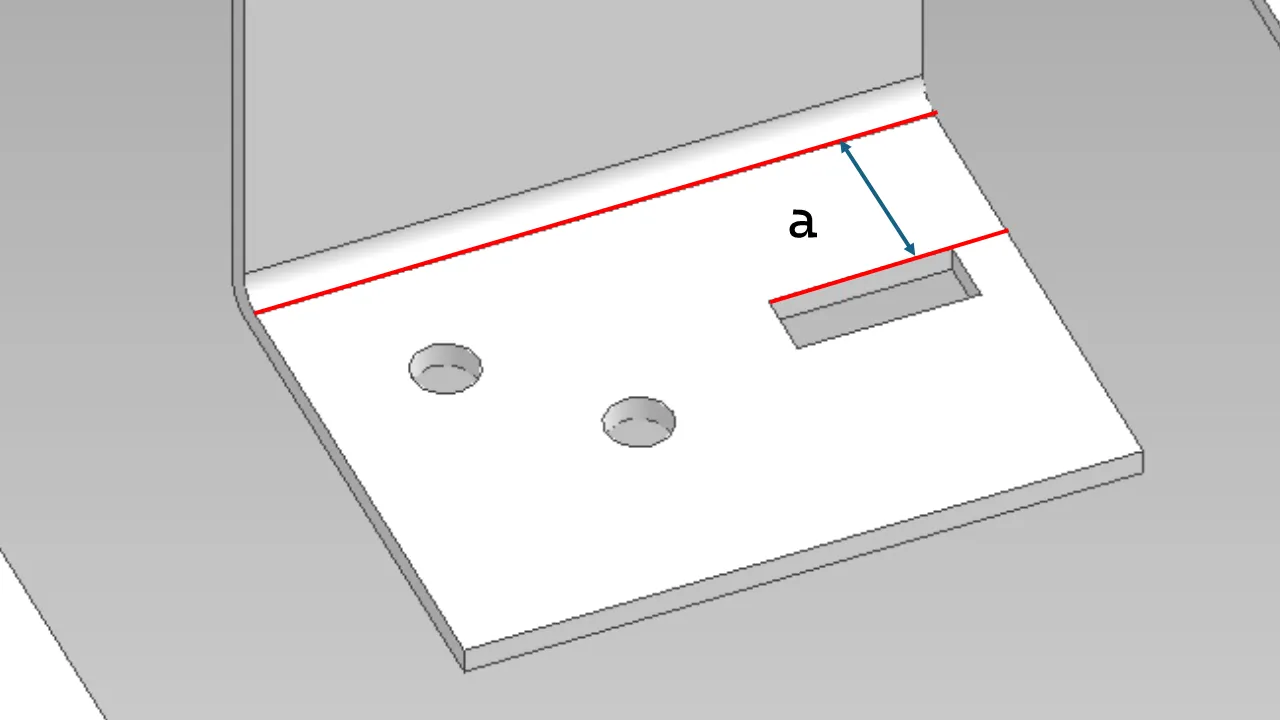
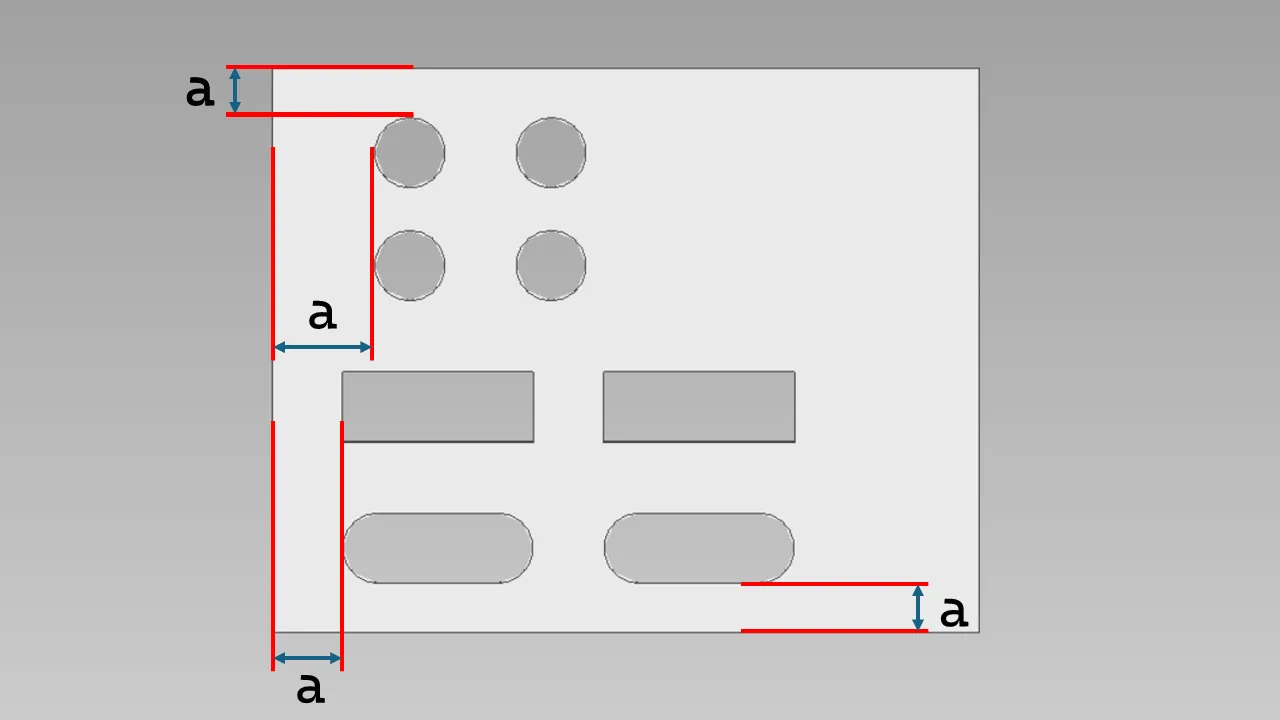
(The figures are taken from the illustrations of the check items that WOGO actually uses for automated design verification on 3D models.)
To turn such rules into judgement conditions, you need a mechanism that holds the rules outside CAD and applies them to the 3D model. With the rules held outside, they can be switched per department and per supplier, and the rule assets survive a change of CAD. We cover the division between what to shift to automated judgement and what people should review in detail in What Is AI Drawing Inspection? How Manufacturers Automate Design Verification to Reduce Errors and Checking Hours.
WOGO’s Automated Design Verification service, “Hacadly”, is a mechanism that applies your own design rules to 3D models automatically. iCAD SX and SOLIDWORKS are supported as standard, and a wide range of other CAD systems — CATIA, NX, Creo, Solid Edge, Autodesk Inventor, Fusion 360 and more — can also be supported. Rule sets can be managed per department and per supplier, and on-premises operation is supported. For enquiries about adoption or a PoC, please contact us.
So which CAD should you choose?
We do not recommend choosing CAD on the basis of AI features. The switching cost does not pay off, and the features themselves move every year. What we have organised in this article will surely have been rewritten a year from now, and there is no guarantee that an answer chosen from this year’s comparison table is still optimal next year.
The axes to look at instead lie in places that move more slowly.
- Can you get the data out? Whether you can connect to mechanisms outside CAD, through STEP export or add-ins
- Can you bring in your own rules as judgement conditions? Whether you can judge against your own standards rather than general-purpose design assistance
- Does it fit the constraints of your environment? Whether features that assume a cloud connection are usable under your security requirements
And what should be decided before any comparison is where rework is occurring right now. Without knowing where it originates, you cannot decide which layer of AI will help. We cover this structure in Rework Costs on the Manufacturing Design Floor, and the Arguments Around 3D and 2D Design Verification.
Frequently asked questions about AI features in CAD
Do we have to upgrade to the latest version to use AI features?
Not necessarily. As with SOLIDWORKS’ fastener recognition, some features were introduced in a service pack of the previous version and carried over into the latest one. We recommend checking the service pack and the licence configuration as well, not just the version number.
Is it acceptable to use beta or technology preview features in production work?
Vendors state the availability status because specifications may change or the feature may be withdrawn. The realistic approach is to trial them for evaluation, not to build them into your business process.
Can CAD AI features be used in an on-premises environment?
It depends on the feature. Features that assume a cloud or platform connection cannot be used in environments where data cannot leave the company. Check where the feature is processed before you look at the feature list.
Are we at a disadvantage in design automation if our CAD has no AI features?
Not necessarily. The route of handing CAD data to an external AI service is already working in practice, and AI features inside CAD are only one of the entry points to automation.
Can models generated by AI go straight into manufacturing?
A step to confirm the validity of the output is still required. As CATIA builds in physics-based controls and validation, the direction across vendors is to treat generation and verification as a pair.
Summary
Even under the same “AI-powered” label, the layer being touched differs. Predicting operations, searching knowledge and generating or editing the model are entirely different things in practice, and deciding first which layer your target workload sits in changes how you read the brochures. Check the availability status and the assumed operating environment as well.
AI features inside CAD are only one of the entry points to design automation. There are three routes — neutral formats, add-ins and integration with external services — and you can move automation forward without changing CAD.
What the vendors’ AI does not fill is the area of “judging against rules that are settled only between you and your supplier”. General-purpose design assistance cannot substitute for it, and it requires a mechanism that holds the rules outside CAD.
If you are interested in a mechanism that judges your own design standards automatically from 3D models, please get in touch via our materials request or contact form.
This article was written by WOGO Inc., a University of Tokyo-originated startup developing systems for design verification, automated drawing inspection and design/drafting automation in manufacturing using 3D, CAD and AI technologies.
Product and service names in this article are trademarks or registered trademarks of their respective owners. SOLIDWORKS and CATIA are trademarks of Dassault Systèmes S.E. or its subsidiaries; Autodesk and Inventor are trademarks of Autodesk, Inc.; NX is a trademark of Siemens Industry Software Inc.; iCAD SX is a trademark of iCAD Ltd. This article is commentary based on publicly available information from each vendor and does not indicate any partnership with or endorsement by them.